Sign in to MedBrains on the box
The box has its own identity service, Identity, which proves who you are. What you may do once signed in is still decided by your role in MedBrains.
Sign in
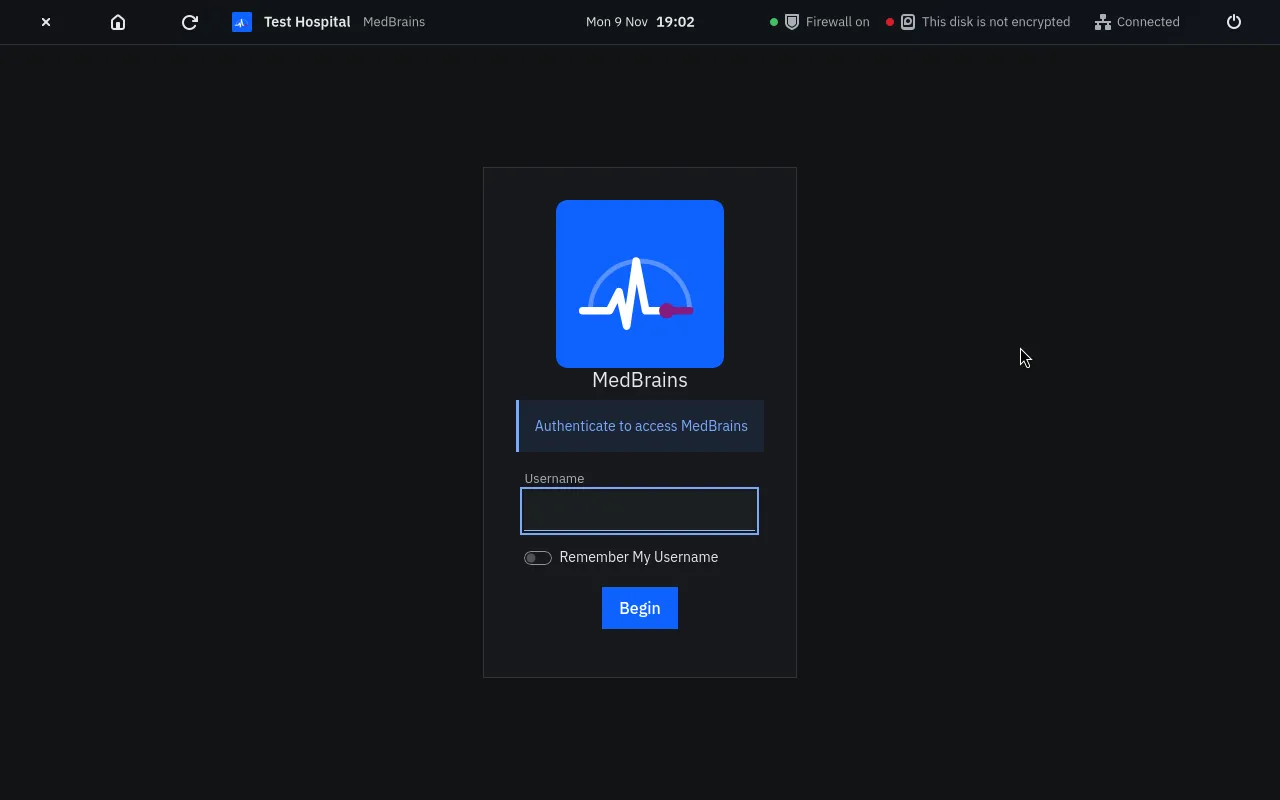
- On the desktop, select MedBrains in the dock. It opens in stages, with words and a progress bar.
- On the sign-in page, type your Username and select Begin.
- Type your password, then the 6-digit code from your authenticator app.
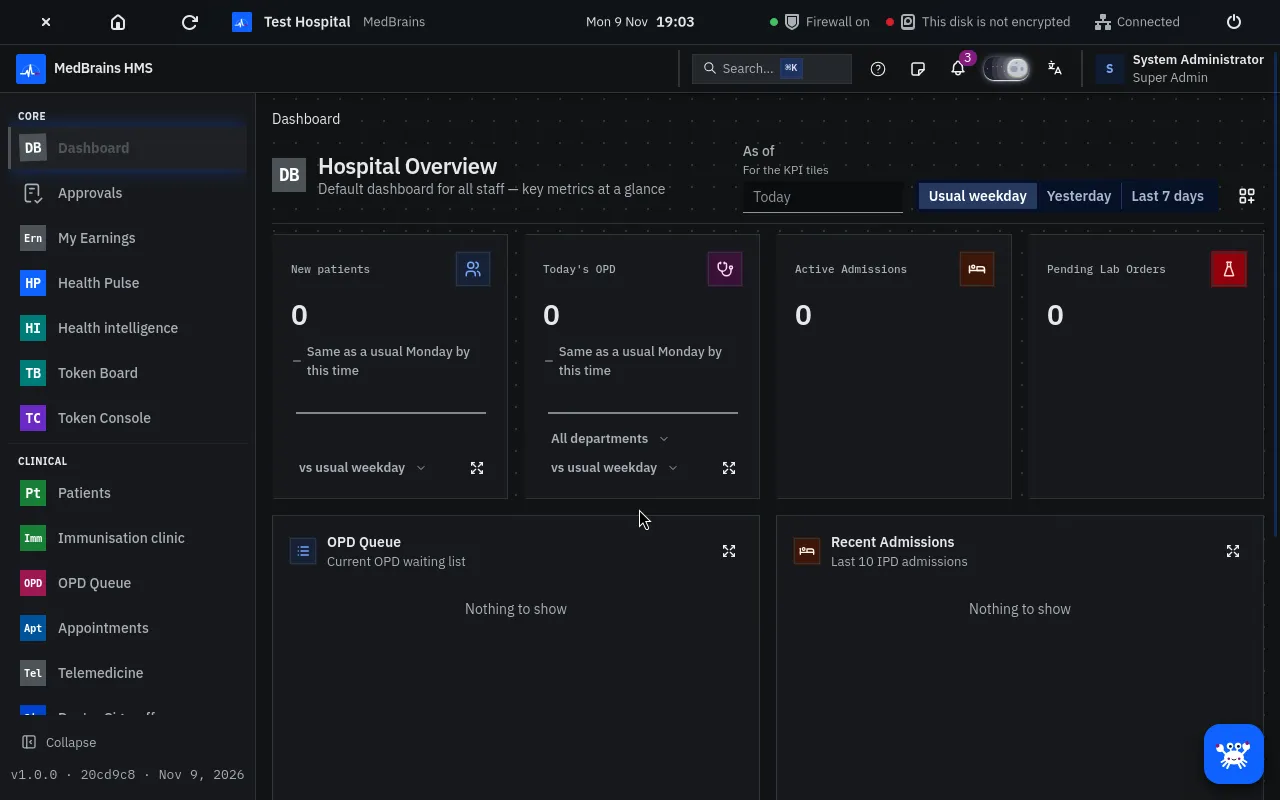
The dashboard opens.
note
The screens after Begin belong to the Identity service. Their exact wording was not checked against the code for this page.
Moving around the box
- Home keeps MedBrains open and goes back to the desktop.
- Close ends the app's view and frees its memory.
- Reload reloads the page. A restart signs you out.
When something goes wrong
- "The sign-in service is not answering…" Identity restarts by itself within seconds. Staff already signed in keep working. While it is down, only the first administrator can sign in, with the password chosen at setup.
- Forgotten password. Ask IT to issue a reset link for you. There is no button for this on a screen yet.
- Lost authenticator phone (first administrator). Sign in to MedBrains with your setup password on its own form, then ask IT to replace the authenticator. Every such sign-in is audited.