Join a ward PC to the main box
Who: two people, or one walking between machines: someone at the new PC, and an administrator signed in to MedBrains on the main box.
Each side proves itself to a person with a 6-digit code. Only then does the PC join. A PC that has joined holds no patient data and no secrets of the hospital; it reaches the main box over an encrypted link.
On the new PC
- Start the new PC with MedBrains OS and choose Connecting to my hospital.
- Give it a name (for example "Reception 1") and a type: workstation or display.
- Pick the main machine from the list, or type its address.
- The screen shows six digits. Leave it showing.
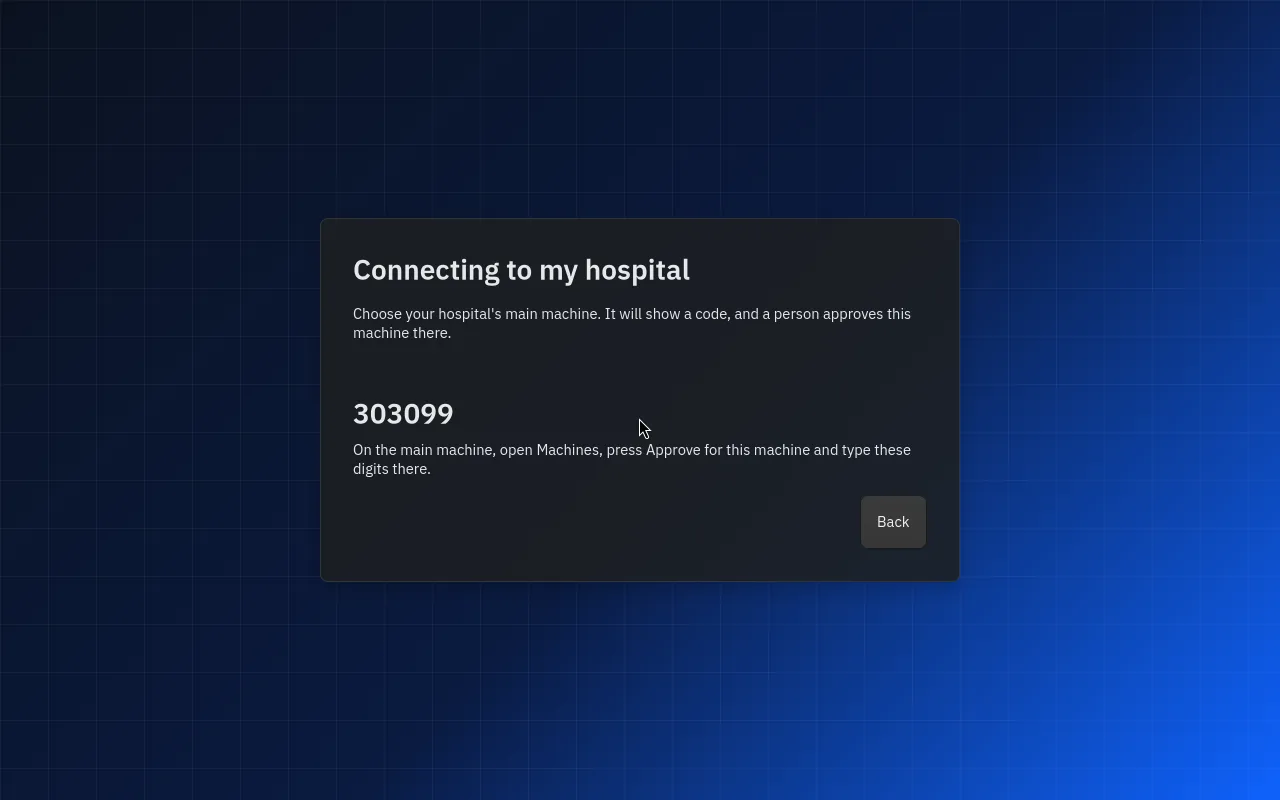
On the main box
-
In MedBrains, go to Admin → Machines. The PC is under Waiting to join.
-
Select Approve, type the six digits from the PC's screen, and select Approve.
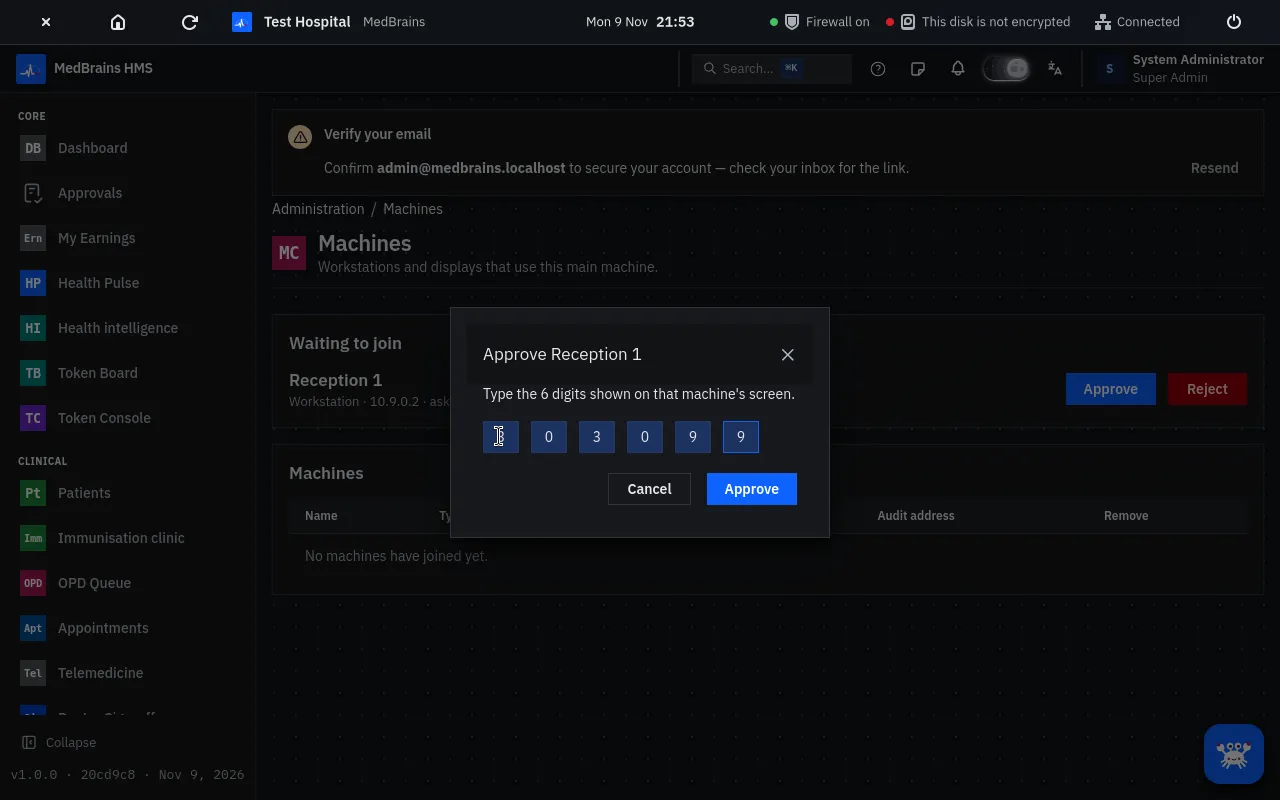
Type the 6 digits shown on that machine's screen. -
One more step shows six other digits. Leave them showing.
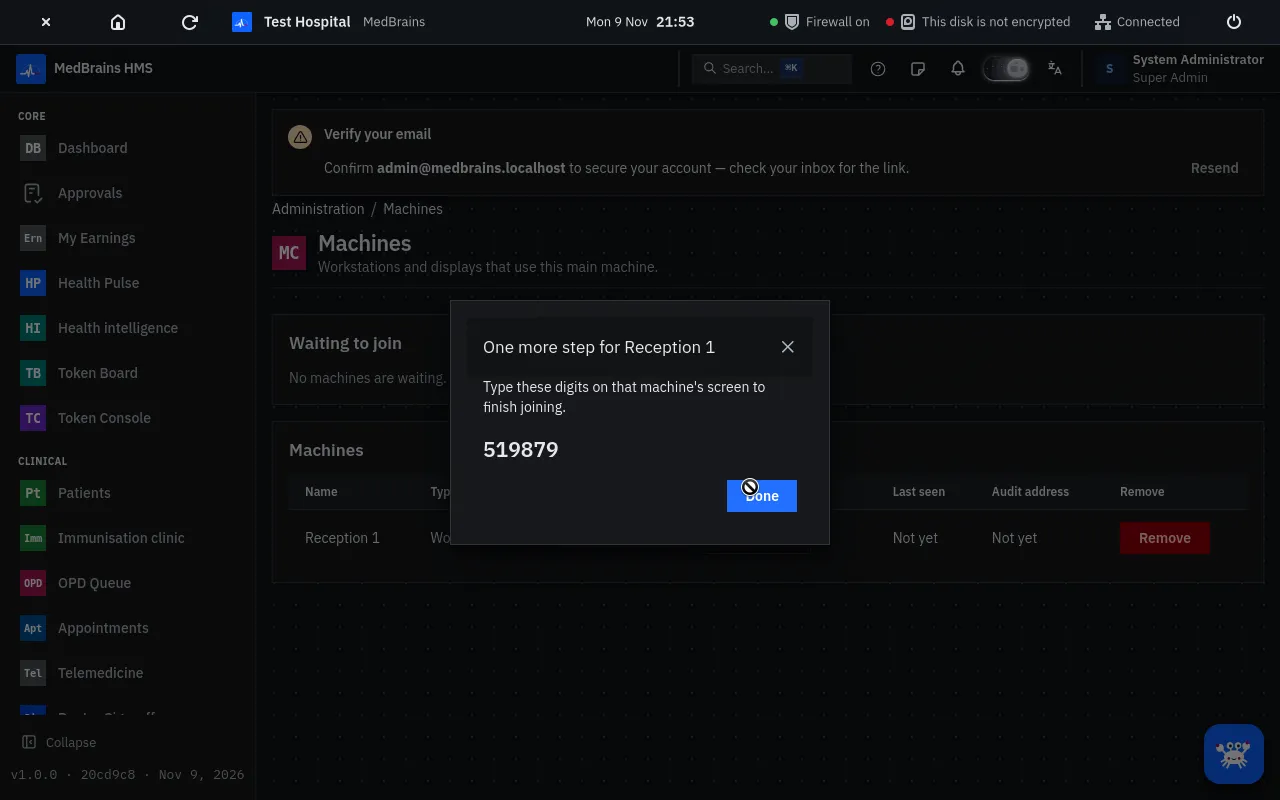
Type these digits on the new PC to finish joining.
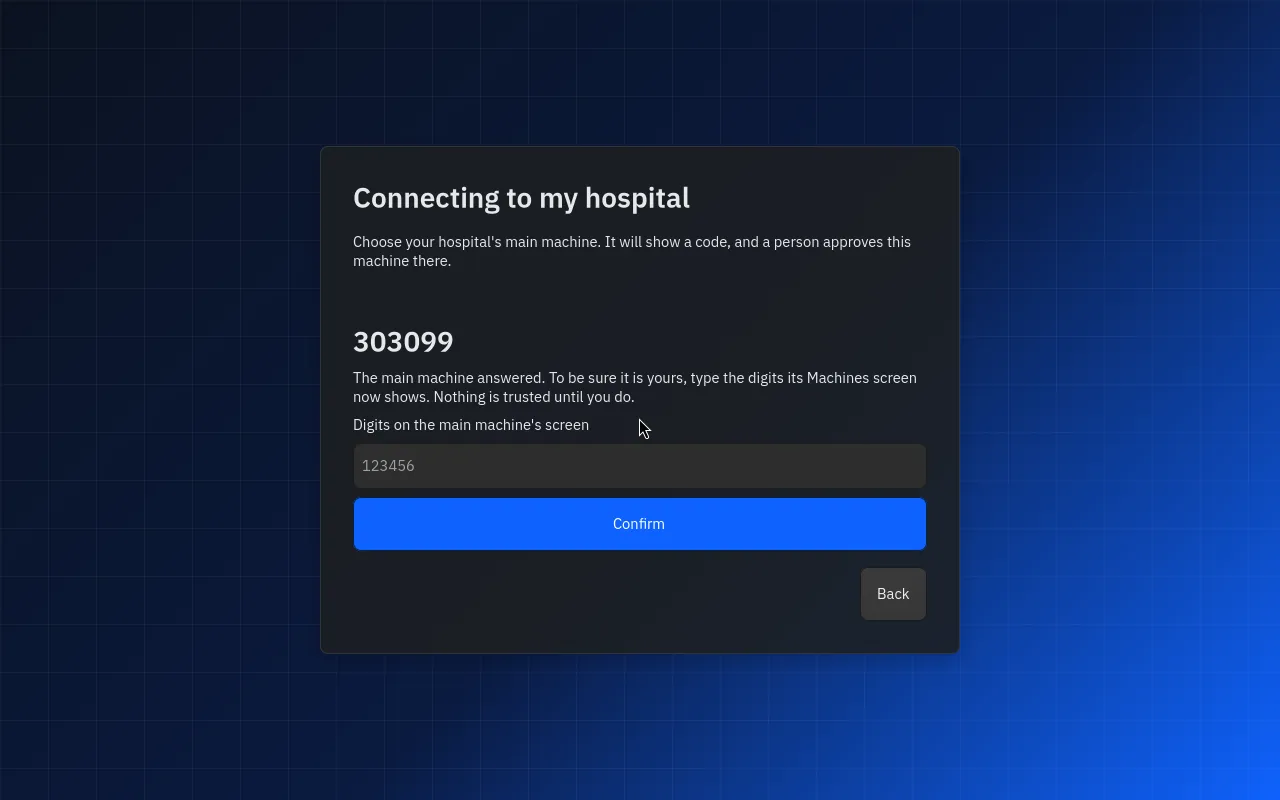
Back on the new PC
Type the digits from the main box under Digits on the main machine's screen and select Confirm. The PC joins, and MedBrains opens on it.
Select Done on the main box. The PC now appears under Machines.
When something goes wrong
-
"That is not the code on the machine." Check you are approving the right machine: a different code can mean a fake main machine. Three wrong codes refuse the request; the PC can ask again.
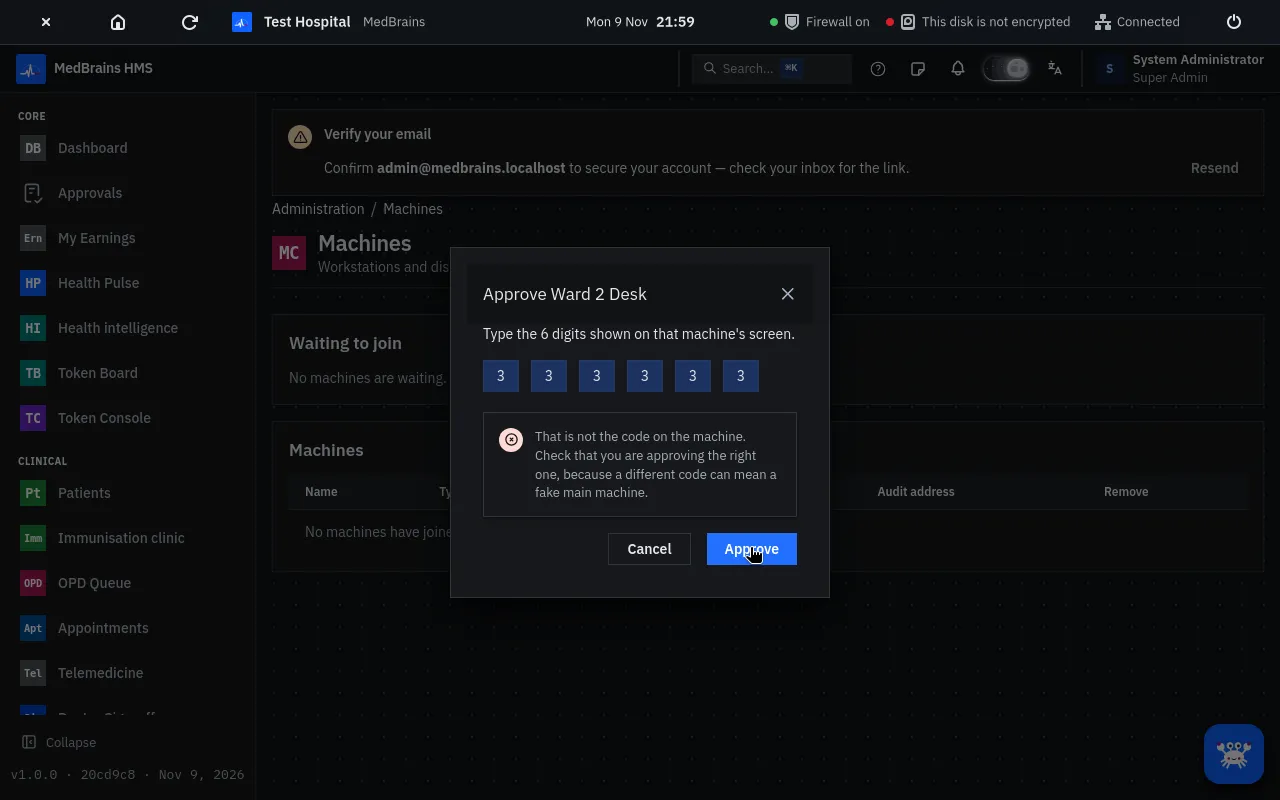
A wrong code is refused and explained. -
The request is gone. Requests run out after 10 minutes. Start again on the PC.
-
The PC is not in the list. Type the main box's address on the PC instead: some networks block the automatic search.
-
"Cannot reach the main machine" on a joined PC. Check the cable. The PC keeps trying by itself.