Order a lab test and read the result
Who: doctors. Where: the patient's OPD visit → Investigations.
Order the test
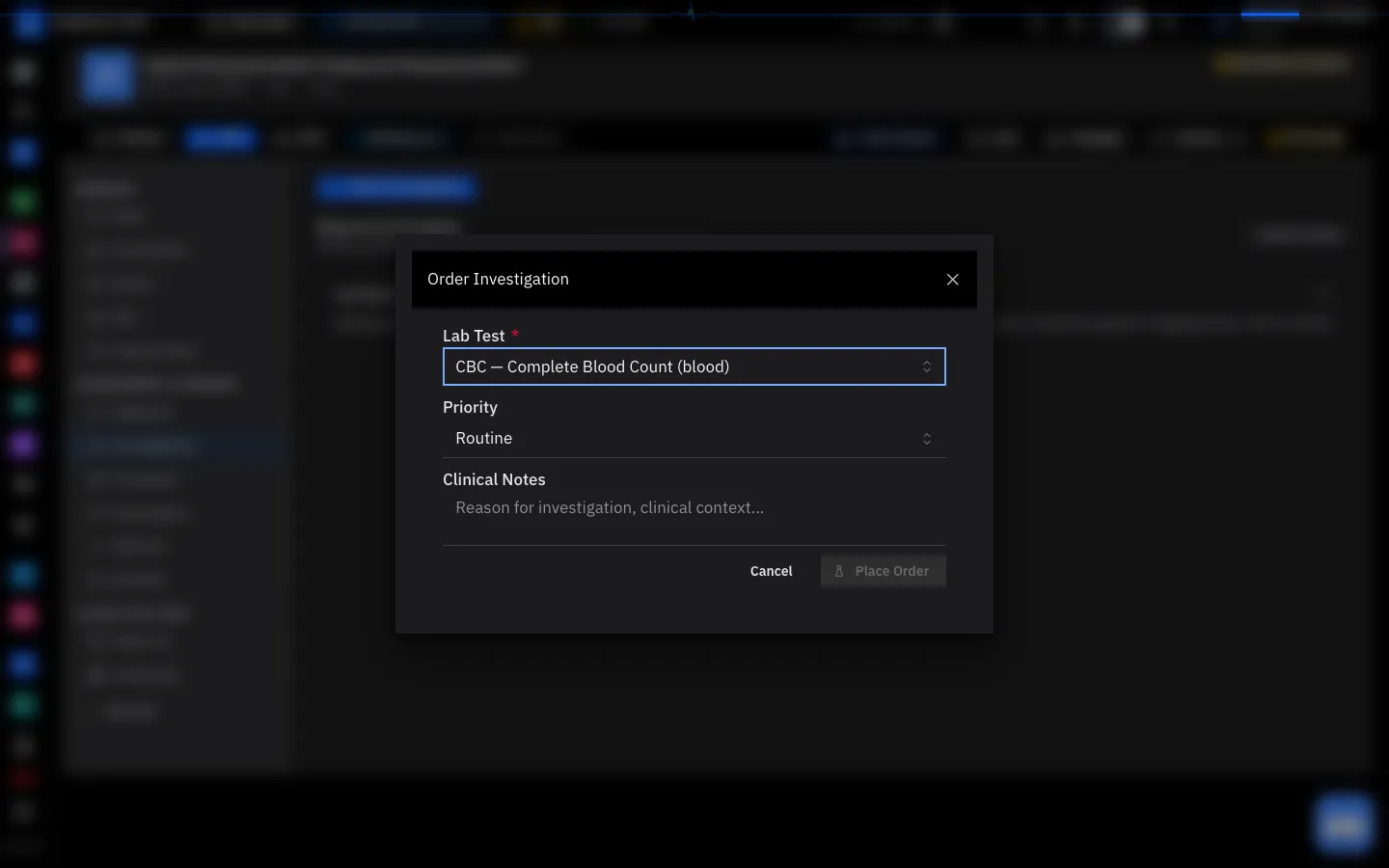
- Open the patient's visit and choose Investigations on the left.
- Select Order Investigation.
- Under Lab Test, type part of the test's name or code — "CBC", "Complete Blood" — and choose it from the list.
- Leave Priority as Routine, or choose a faster one for an urgent test.
- Write the reason under Clinical Notes: the lab reads it.
- Select Place Order. The test appears in the list below with the status ordered, and on the lab's worklist.
Read the result
When the lab has verified the result, it appears on the visit under Investigations → Lab Reports, marked Verified, and the bell at the top of the screen shows a notification. Select View to read it.
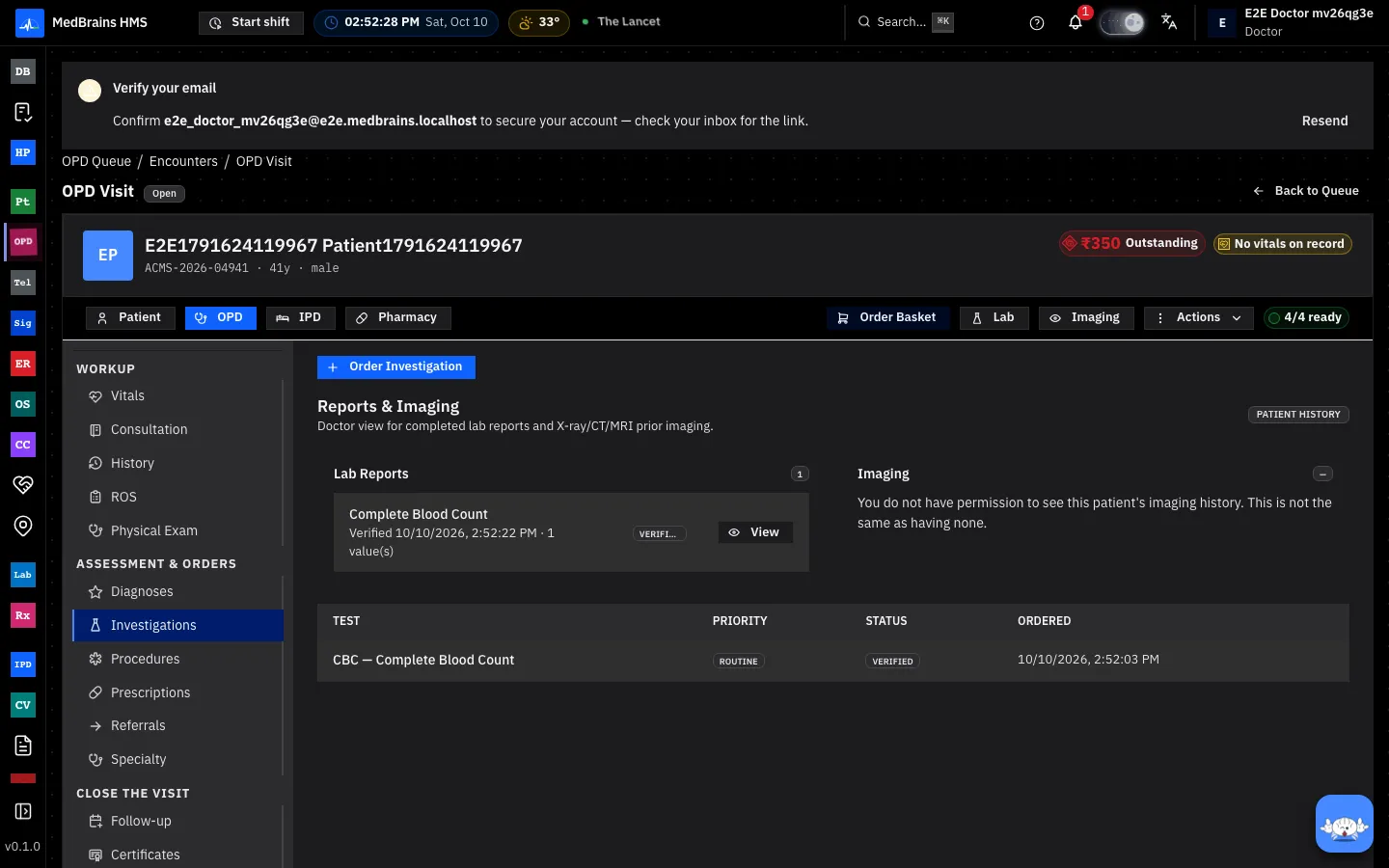
A result is shown only after the lab verifies it. A test that is still ordered, sample collected or processing is in the list with its status, and its values are not shown yet.
When something goes wrong
- A critical value. The lab calls it through and records who received it; a red banner shows on the lab's screens until it is acknowledged. Act on it at once.
- "You do not have permission to see this patient's imaging history." This is about your access, not the patient: it does not mean there are no images.